
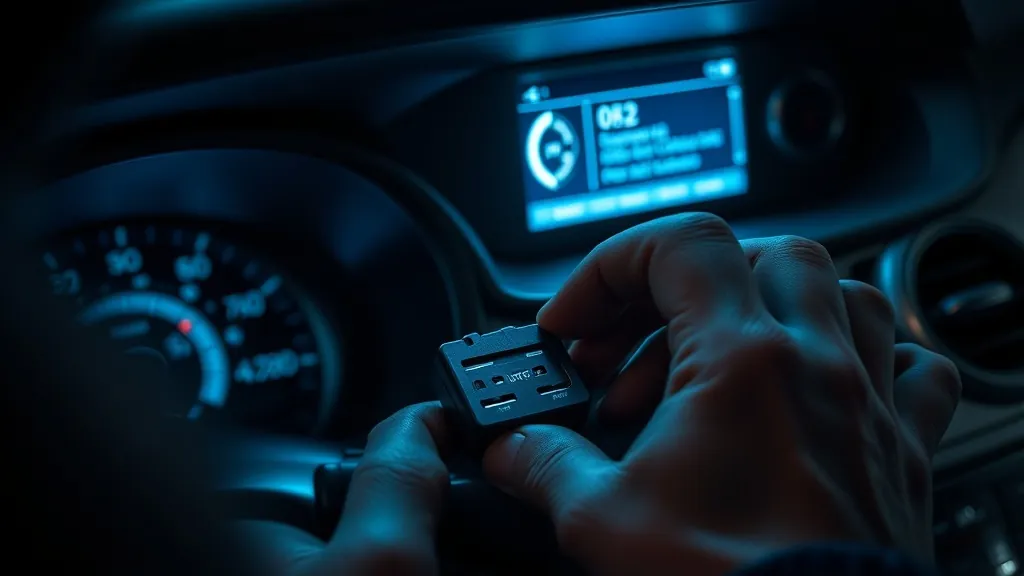
A head-up display is one of the simplest accessories you can add to a car — but when something seems off, it is usually a simple fix. The causes are different for a built-in factory HUD and a plug-in aftermarket HUD, so start with the section that matches yours.
New to how these work? Read how a head-up display works first — several fixes below make more sense once you know the optics.
Built-in (factory) HUD not working? Start here
If the head-up display came with your car, the cause is usually a setting rather than a broken part. Carmakers’ own owner’s manuals (GM and Mercedes-Benz, for example) list the same checks:
- Is it switched on? Most factory HUDs have an on/off setting in the infotainment or instrument-cluster menu. On many GM models, holding the brightness control down switches the HUD off completely.
- Brightness: raise it manually; automatic dimming can leave it too faint in daylight.
- Image position: the image may have been moved out of your view, often by another driver’s settings or seat-memory preset.
- Polarized sunglasses can make a HUD look very faint or invisible. Try without them.
- The HUD lens on the dashboard must be clear of objects and dust, and the windshield clean.
- Double or ghost image after a windshield replacement usually means the new glass isn’t a HUD windshield, or the HUD wasn’t recalibrated.
- A warning message or a blank HUD that ignores every control: restart the car; if it persists, there are known dealer fixes (software updates, reprogramming) on several models.
Step-by-step guides by brand, with the exact menus, warning messages and dealer bulletins:
- BMW head-up display not working
- Mercedes-Benz head-up display not working
- GM (Chevrolet, GMC, Cadillac, Buick) head-up display not working
- Audi and Volkswagen head-up display not working
- Hyundai, Kia and Genesis head-up display not working
- Mazda Active Driving Display not working
- MINI head-up display not working
- Toyota and Lexus head-up display not working
- Peugeot and Nissan head-up display not working
Aftermarket (plug-in) HUD not working
For a GPS or OBD2 unit you added yourself, work through these six problems in order.
Problem 1: The HUD shows no display at all (no power)
GPS HUDs: check that the 12 V adapter or USB socket is live with the ignition. Some USB ports in older cars are always-on; others only power up when the key is in. Try a different 12 V socket or a switched USB adapter.
OBD2 HUDs: make sure the connector is fully seated in the OBD2 port — push until it clicks. Try unplugging and re-plugging. On a small number of cars the OBD2 port needs the ignition fully on (not just accessory mode) to power accessories.
Problem 2: GPS HUD shows no speed or shows “—”
GPS needs a clear view of the sky. Try parking outdoors for 60 seconds on first use — the unit needs to acquire satellite lock. Inside a car park, undercover area, or near tall buildings, GPS signal is often blocked. Once locked, it maintains signal normally while driving.
Problem 3: Display is too dim to see in daylight
If your HUD has manual brightness, set it to maximum. If it has an auto-brightness sensor, make sure nothing is covering it (it is usually a small window on the top of the unit). For windshield-projection HUDs, check that the included anti-reflection film is applied — without it, sunlight washes out the image on most windshields.
Problem 4: OBD2 HUD powers on but shows no engine data
Check vehicle compatibility first — use the HUD Compatibility Checker. Plug-in OBD2 HUDs only work on cars on their fitment list: most cover gas cars from about 2004–2009 onward and exclude hybrids, diesels, pickups and some brands. Also try: start the engine fully (not just ACC), wait 15 seconds, then check the HUD. Some ECUs take a moment to respond to OBD2 queries after cold start.
Problem 5: Display flickers or cuts in and out
For OBD2 HUDs: the most common cause is a loose OBD2 cable connection. Remove and reinsert the connector firmly. Check that the cable is not being pulled by the routing path — add a cable clip to the A-pillar trim to keep it secure. For GPS HUDs on USB power: try a different cable or adapter; cheap USB cables with high resistance can cause intermittent power drops.
Problem 6: The projected image appears upside-down or reversed
Many HUDs have a flip/mirror setting in the menu. A windshield projector must be set to “mirror mode” so the reflection in the glass reads correctly (it is projected upside-down onto the dash and reflected right-way-up onto the screen). Check the unit’s menu for a display flip or HUD mode option.
If none of the above resolves the issue, see the relevant product page for model-specific guidance: KUOWEIHUD K1, wiiyii P6, VIVIHUD V5.
As an Amazon Associate, HUDScreen earns from qualifying purchases. Pricing and availability are shown on Amazon and may change.
Repair not worth it? Add a plug-in HUD
If fixing a factory head-up display costs more than it is worth, a plug-in HUD puts your speed back in your line of sight. Check the fit notes before you order.
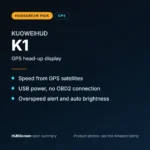 KUOWEIHUD K1 GPS Head-Up Speed DisplayGPS speed with no OBD2 port needed: fits EVs, hybrids and older cars.Check Price →
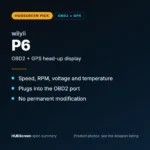 wiiyii P6 OBD2 + GPS Head-Up DisplaySpeed, RPM and temperature from the OBD2 port on compatible 2007+ gas cars.Check Price →
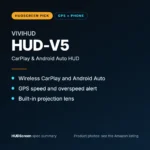 VIVIHUD HUD-V5 Wireless CarPlay & Android Auto HUDWireless CarPlay and Android Auto directions plus GPS speed.Check Price →
As an Amazon Associate, HUDScreen earns from qualifying purchases. Price, shipping and returns are set by Amazon and the seller.
Frequently asked questions
Why does my OBD2 HUD say ‘no signal’ or show dashes?
The most common causes are: the OBD2 connector is not fully seated (push firmly until it clicks), the engine is not running (some HUDs need the engine started, not just ACC), or the vehicle uses a non-standard OBD2 protocol. Check the HUD Compatibility Checker for your make and model.
Why can’t my GPS HUD find a satellite?
GPS HUDs need a clear view of the sky. If you are parked indoors or in a multi-storey car park, the signal is blocked. Drive or park outdoors for 60 seconds on first use — once the unit acquires satellite lock it will reconnect quickly on future starts.
Why is my windshield HUD image blurry or doubled?
A doubled image on windshield-projection HUDs is almost always caused by a missing or incorrectly applied anti-reflection film. The film reduces the secondary reflection from the inner glass surface. Apply it smoothly, without bubbles, to the inside of the windshield where the image appears. On a car with a factory HUD, a double image usually means a non-HUD windshield instead.
Why is my car’s built-in heads-up display not working?
Usually a setting: the HUD is switched off in the menu, brightness is too low (on many GM cars holding the dim control turns it off), the image was moved out of view by another driver’s settings, or you’re wearing polarized sunglasses. A double image after a windshield replacement means the glass isn’t a HUD windshield. If a warning message stays after a restart, see a dealer.
Why can’t I see my HUD with sunglasses on?
Polarized sunglasses block most of the light the windshield reflects from the HUD, so the image looks very faint or disappears. Non-polarized sunglasses avoid the problem; turning brightness up helps a little.