
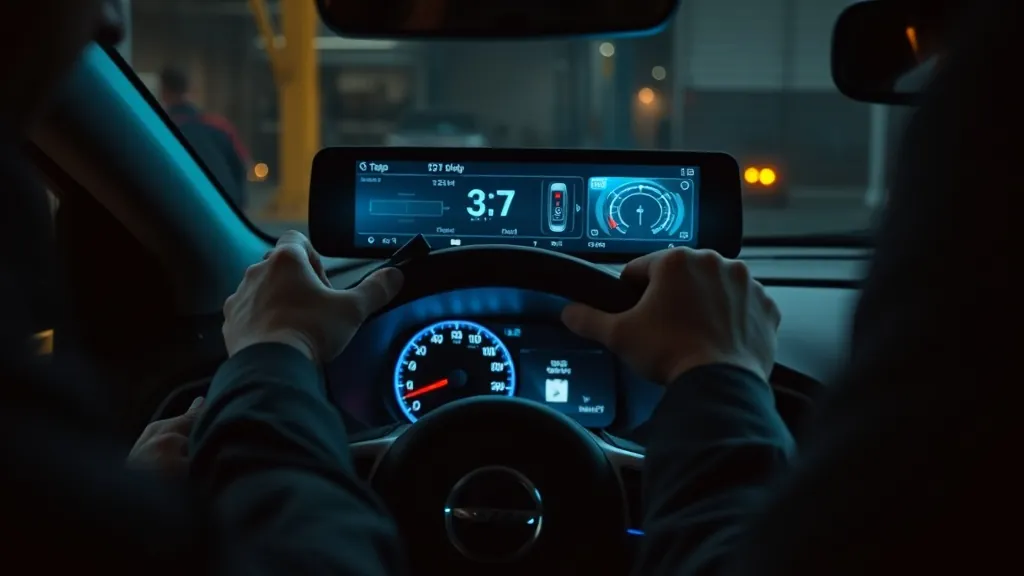
Installing an aftermarket head-up display is one of the easiest car upgrades: no cutting, no wiring into the car’s electrics and usually no tools. This guide covers all three types (GPS, OBD2 and CarPlay / Android Auto HUDs). Do every step while parked.
Before you start: check fit
- GPS HUD: works in any vehicle with a USB port or 12 V socket. Nothing else to check.
- OBD2 HUD: your car must be on the unit’s fitment list. The OBD2 port is standard on US cars from 1996, but most plug-in HUD listings only cover gas cars from about 2004–2009 onward and exclude hybrids, diesels, pickups and some brands. Run the HUD Compatibility Checker and read the listing’s compatibility notes.
- CarPlay / Android Auto HUD: needs a compatible phone and a flat spot on the dash wide enough for the unit.
Installing a GPS HUD (any vehicle, about 3 minutes)
- Position the unit. Place it low and centred on the dashboard in front of the steering wheel, below your normal line of sight to the road. Use the supplied non-slip pad or adhesive.
- Apply the reflective film (windshield-projection models only). Clean the glass where the image lands and apply the film, pressing out air bubbles with a card. Without it you’ll see a faint double image.
- Connect power. Plug the USB cable into a USB port or a 12 V-to-USB adapter. A port that switches off with the ignition is best, so the HUD doesn’t stay on when you park.
- Get a GPS lock. On first use, park with a clear view of the sky and wait up to a minute or two. Later starts lock much faster.
- Set it up. Choose mph or km/h, set the overspeed alarm, and adjust brightness if the unit has manual control.
Installing an OBD2 HUD (compatible cars, about 5 minutes)
- Find the OBD2 port. It is almost always under the driver-side dashboard, within about 2 feet of the steering column: a 16-pin, trapezoid-shaped socket. Some cars hide it behind a small cover.
- Plug in the cable until it seats firmly.
- Route the cable up along the A-pillar trim (the strip between the windshield and the door) to the dashboard, tucking it into the trim gap with a plastic pry tool or a card. Keep it clear of the pedals and of any airbag markings on the pillar.
- Position the display low on the dash, as for a GPS HUD, and apply the reflective film if it projects onto the windshield.
- Start the engine. The HUD should power up and show speed and engine data within a few seconds. If it stays blank or shows no data, see the HUD troubleshooting guide.
- Set it up: units, overspeed alarm, which gauges to show, and brightness.
Installing a CarPlay / Android Auto HUD
- Place the unit on a flat part of the dash where its screen or lens doesn’t block the road view.
- Connect power with the supplied cable. On units like our VIVIHUD V5, the OBD cable supplies power only (it reads no engine data); a 12 V lighter cable is the alternative.
- Pair your phone while parked, with Bluetooth and Wi-Fi switched on, then follow the on-screen CarPlay or Android Auto prompts.
Power and battery
On most cars the OBD2 port has power even when the ignition is off, so OBD2 HUDs switch themselves off when they detect that the engine has stopped. If yours stays lit after parking, unplug it or use a switched adapter. More detail in does a head-up display drain the battery?
Cable management tips
- Use the adhesive cable clips (usually included) to keep the cable tidy along the pillar and dash edge.
- Never route cables across the driver’s footwell, where they can catch on the pedals.
- A slim 90-degree OBD2 extension keeps the plug flush if your knee touches the port.
As an Amazon Associate, HUDScreen earns from qualifying purchases. Disclosure.
Our HUD picks
Three plug-in head-up displays, by what you want on the windshield.
 KUOWEIHUD K1 GPS Head-Up Speed DisplayGPS speed with no OBD2 port needed: fits EVs, hybrids and older cars.Check Price →
 wiiyii P6 OBD2 + GPS Head-Up DisplaySpeed, RPM and temperature from the OBD2 port on compatible 2007+ gas cars.Check Price →
 VIVIHUD HUD-V5 Wireless CarPlay & Android Auto HUDWireless CarPlay and Android Auto directions plus GPS speed.Check Price →
As an Amazon Associate, HUDScreen earns from qualifying purchases. Price, shipping and returns are set by Amazon and the seller.
Frequently asked questions
Do I need tools to install a head-up display?
Usually not. GPS and OBD2 HUDs plug into a USB, 12 V or OBD2 port. A plastic trim tool or a card is only needed if you want to tuck the cable into the trim.
Can I install a head-up display myself?
Yes. A GPS HUD takes a few minutes and an OBD2 HUD around five, with no wiring into the car’s electrics. Check that your car is on the OBD2 unit’s fitment list first.
Where is the OBD2 port in my car?
Usually under the dashboard on the driver’s side, within about 2 feet of the steering column, as a 16-pin trapezoid socket. Some cars put it behind a small trim cover.
Where should I position a head-up display?
Low and centred in front of the steering wheel, below your normal line of sight, so the image sits in the lower part of the windshield and never blocks the road.
Will an OBD2 HUD drain my battery?
Most units turn themselves off when the engine stops and draw very little power. Because the OBD2 port usually stays live with the ignition off, unplug the HUD if it stays on after parking.